
Key Takeaways
- Google drives restaurant discovery: Your Business Profile is one of the strongest demand channels for visibility, trust, and order intent.
- Accuracy directly impacts revenue: Incorrect hours, menus, or contact details lead to missed orders, poor reviews, and lost foot traffic.
- Direct ordering protects margins: Routing orders through your own system avoids marketplace commissions and preserves customer ownership.
- Menus influence conversion: A structured, up-to-date menu reduces uncertainty and increases walk-ins and online orders from Search and Maps.
- Visuals shape first impressions: High-quality photos and videos directly affect perceived trust and dining decisions.
- Reviews guide operations: Patterns in reviews should trigger real staffing, service, and workflow improvements.
- Insights enable optimization: Monthly analysis of calls, searches, and direction requests turns visibility into measurable growth.
- Duplicate profiles cause revenue loss: Multiple listings split traffic, misroute calls, and weaken local rankings.
- Commission-free orders scale profit: Linking your Google Business Profile to your Restolabs direct ordering site routes customers into your commission-free, branded checkout.
Even though there’s growing evidence that the traditional model of web search is experiencing measurable shifts in user behavior and traffic distribution, particularly due to the rise of AI search platforms, Google remains the #1 channel by a large margin for local business discovery, including restaurants.
When someone searches for “pizza,” “café,” or “restaurants near me,” the results they see are determined entirely by Google’s ranking system. And as you’d agree, customers rarely scroll past the first page results.
That means if your restaurant doesn’t show up clearly on Search or Maps, potential diners are unlikely to find you at all. And even if they do, outdated hours, incorrect location details, or missing menu info can quickly drive them to a competitor instead.
Despite how critical this is, most businesses either never fully optimize their Google Business Profile or abandon it after the initial setup. If that sounds familiar and you want to fix it, the steps below will walk you through exactly how to take charge of your local visibility.
What Is Google Business Profile?
Previously known as Google My Business (GMB), Google Business Profile is a free tool that controls how your restaurant appears on Google Search and Maps. It displays key information, including your hours, phone number, and location. It also supports customer engagement through reviews, photos, and business updates.
What Are the Benefits of Google Business Profile for Restaurants?
A few advantages stand out:
- Stronger local discovery: A well-managed profile directly affects whether you appear in the local 3-pack, on Maps, and in brand searches. That visibility places your restaurant in front of nearby diners at the moment they’re deciding where and what to eat.
- Increased customer trust: Accurate business details, real customer photos, and active review management signal legitimacy. For first-time visitors, this removes doubt and makes your restaurant feel like a reliable choice.
- Control over public information: Your Business Profile lets you manage the exact details displayed online, including operating hours, location, and menus. This prevents incorrect third-party data from misrepresenting your business.
- Shorter path from search to transaction: Thanks to your Google listing, customers can instantly call you to get directions, place orders, and make reservations. Each action turns discovery into a transaction without relying on a website visit.
How to Create a Google Business Profile for Your Restaurant
Here’s a simple framework for you to get going:
1. Claim and verify your restaurant’s Google profile
To set up your Business Profile, you need to be logged in to a Google account. You can use an existing account or create a new one specifically for your restaurant.
Once logged in, search for your business name directly on Google or visit the official Google Business Profile Manager setup page.
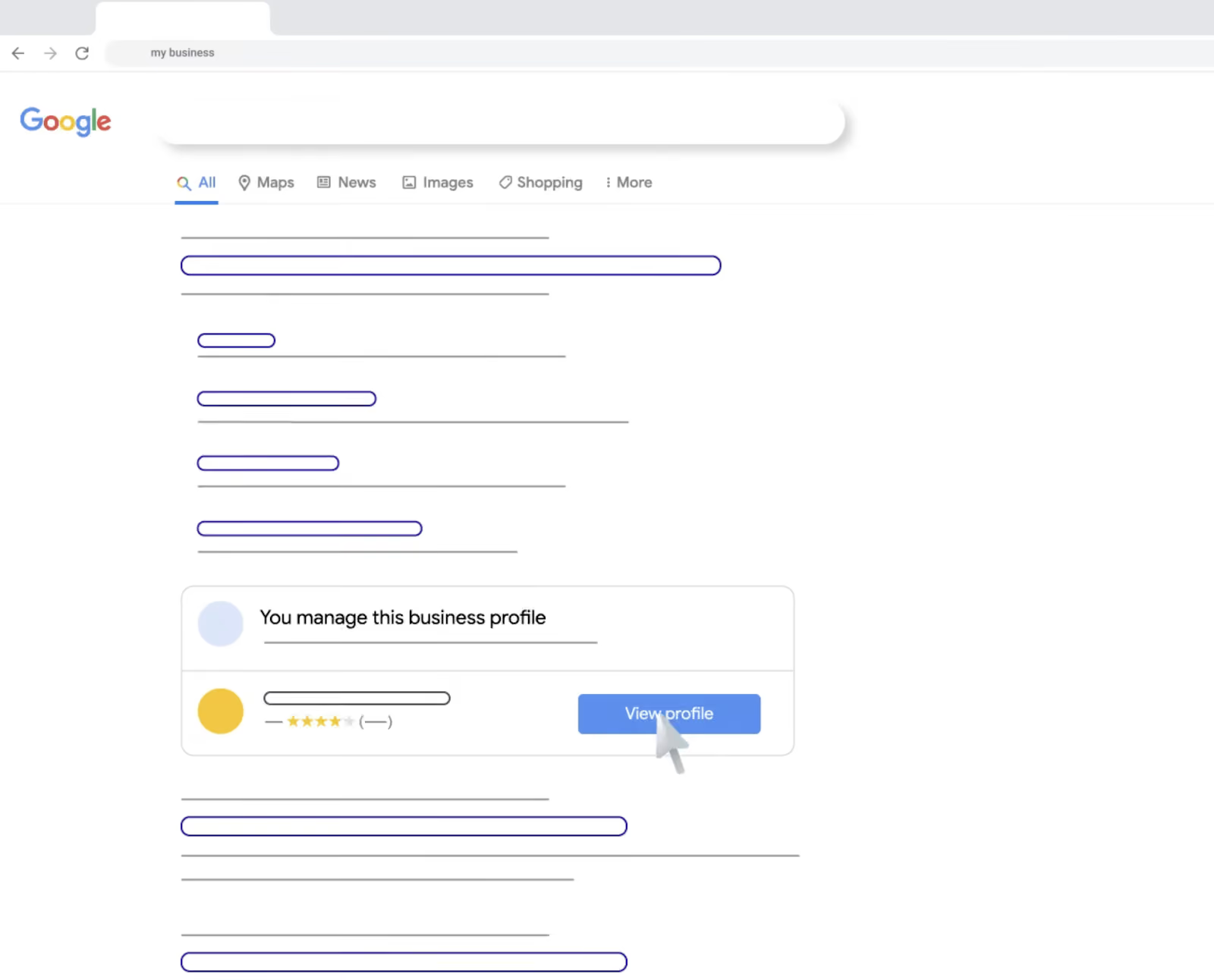
If your business already appears in the results, request ownership of the existing listing. If it does not appear, create a new profile by entering your restaurant’s name and selecting the most relevant category for your service type.
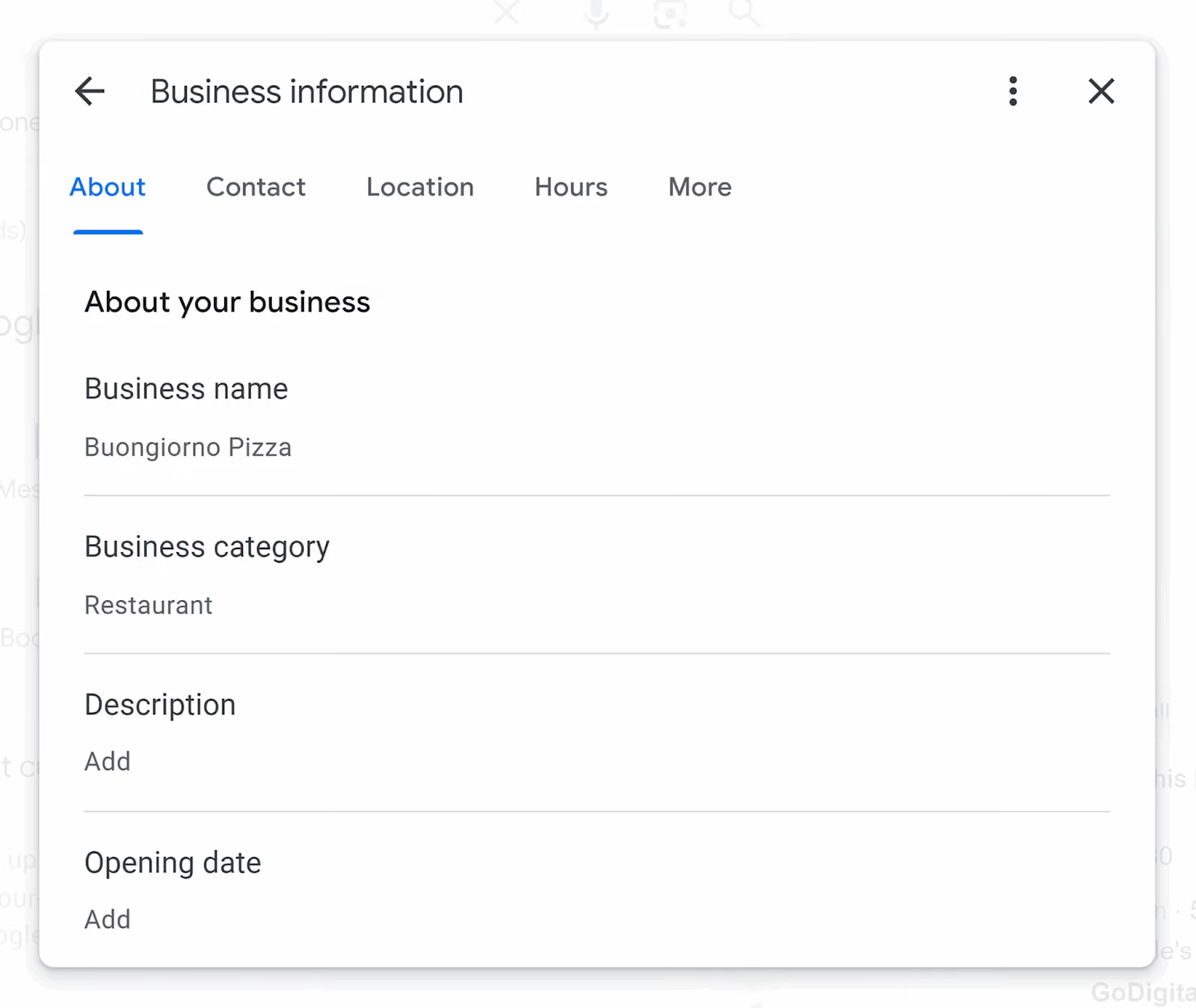
Next, you must verify that you’re the legitimate owner of the business. This step is mandatory before your profile can go live. Google may offer different verification methods depending on your location and business type.
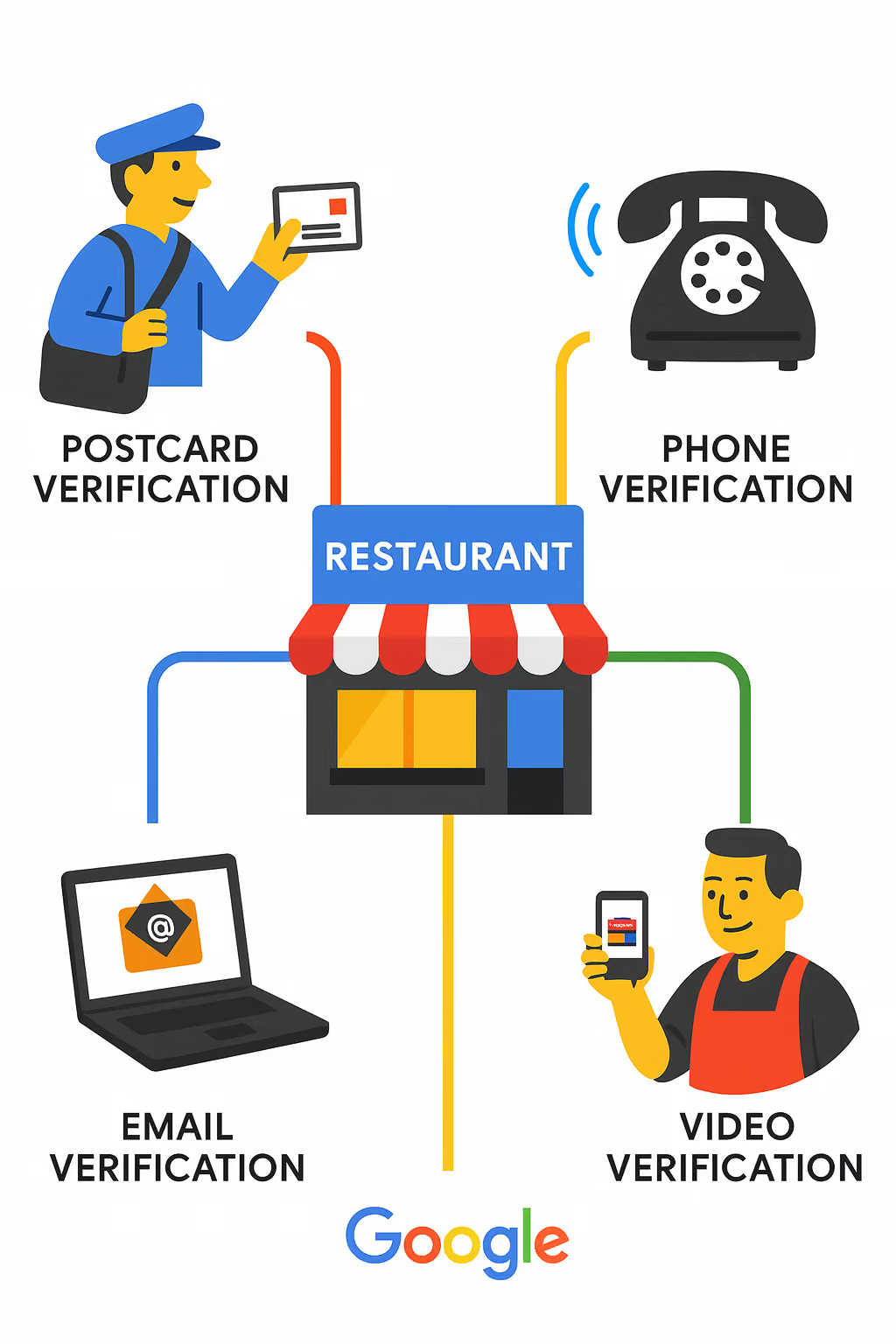
Once verification is complete, your Business Profile becomes publicly visible, and you gain full administrative control over its management.
Pro Tip: If your verification is delayed or fails, avoid requesting new verification codes from multiple Google accounts. This can trigger a manual review, further slowing the process.
Instead, continue with the same account, wait for the verification window to expire, and then check which alternative methods Google offers.
When address validation is difficult, such as in shared buildings, food courts, or newly opened locations, Google may switch to video or live verification.
2. Lock in accurate business and service details
This one’s straightforward, but be as thorough as possible. Start by confirming or updating the following details:
- Restaurant name
- Physical address
- Phone number
- Website link
- Service area (if you offer delivery beyond your location)
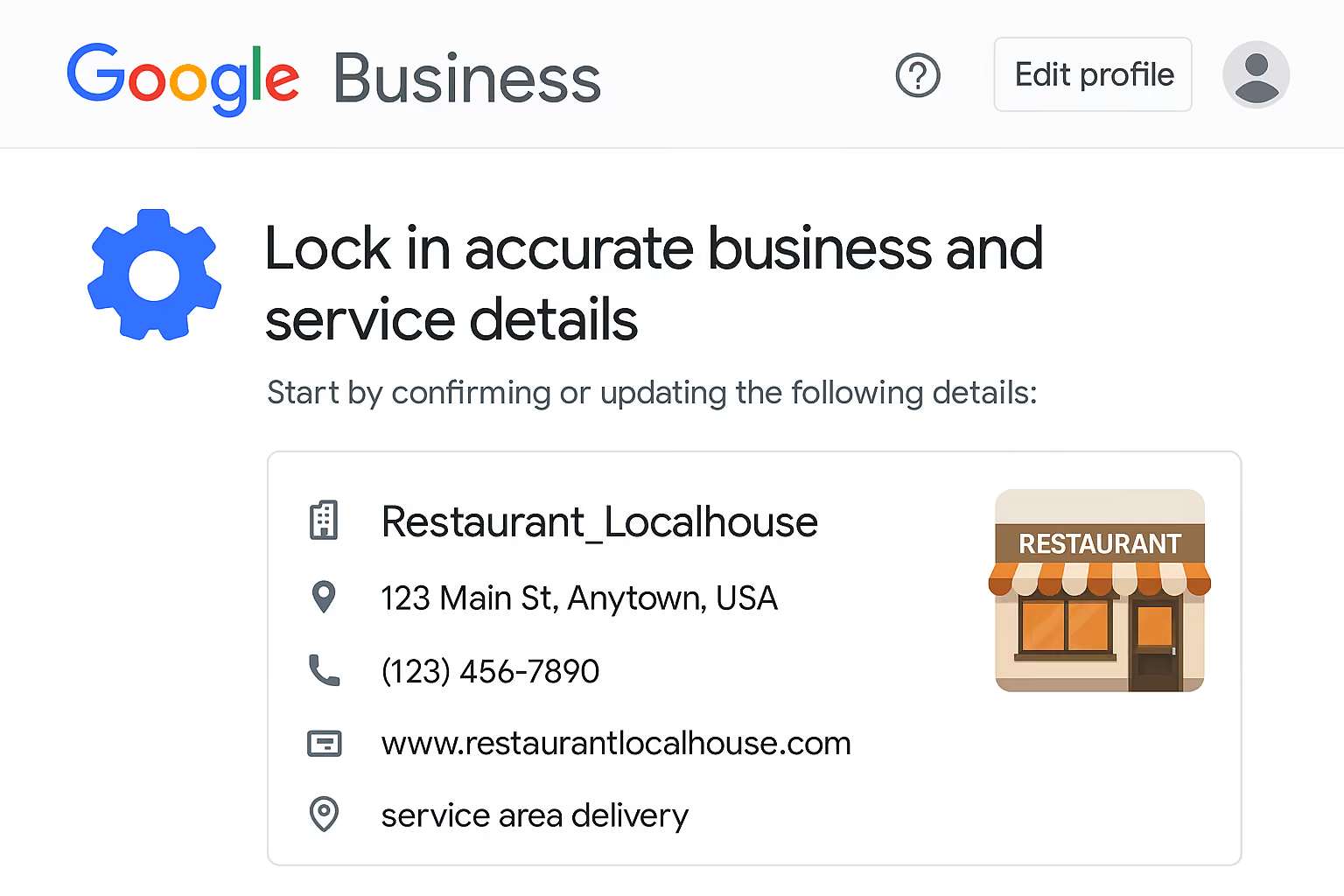
You can also add supported social links, such as Facebook or Instagram, where available. Next, set your regular operating hours. These appear directly in search results and on Google Maps. In addition, configure special hours for:
- Public holidays
- Temporary closures
- Festival or local events
If your restaurant offers multiple services, such as dine-in, takeaways, or delivery, define separate service hours for each service where applicable. Finally, add key business attributes that help customers understand your offering at a glance. These may include:
- Takeaway and delivery options
- Wheelchair accessibility
- Dine-in availability
- Outdoor seating
- Alcohol service
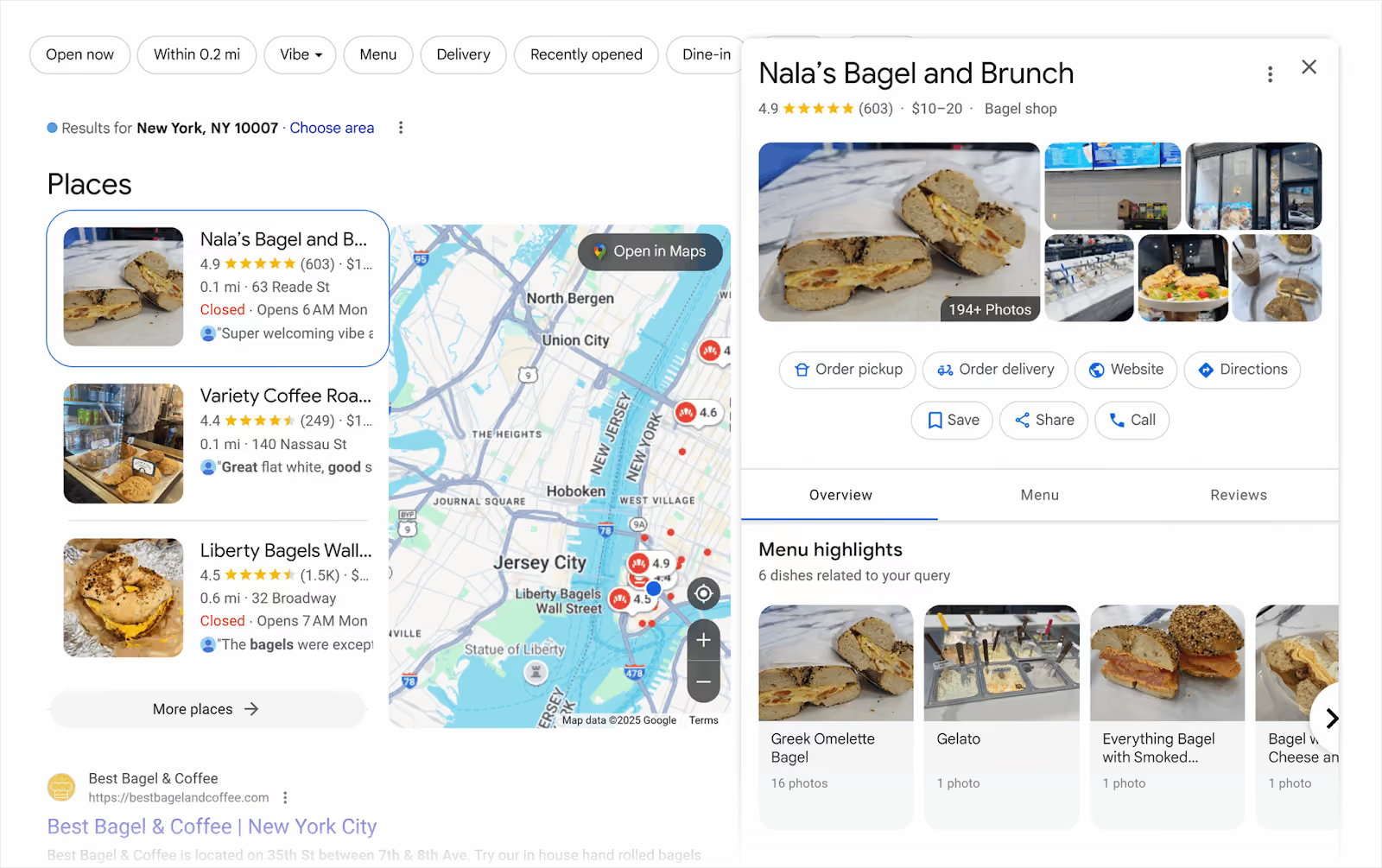
Pro Tip: Even after you’ve filled in your profile details correctly, Google can still auto-update them based on user suggestions, third-party data providers, or its own confidence systems. This is one reason restaurants sometimes appear “closed” even when they’re operating normally.
Therefore, make it a habit to double-check your hours before long weekends, holidays, or festival periods. One incorrect closing time can cost you an entire dinner rush in a single evening.
3. Set up ordering, bookings, and waitlists
Once your core business information is in place, connect your preferred online ordering system to your Google Business Profile dashboard. This allows you to start accepting food orders directly from Google Search and Maps.
If you accept table reservations, activate bookings through one of Google’s supported reservation partners, such as Resy, Open Table, The Fork. This enables customers to:
- Book a table
- Join a waitlist
- Check real-time availability
Pro Tip: If more than one delivery or booking provider is linked to your profile, Google may change which option is shown by default, affecting where your orders are routed.
Therefore, after setup, check your live profile from a customer’s view to confirm the correct provider is prioritized and that the ordering or booking flow works as expected.
Restolabs in Action: If you use Restolabs for direct online ordering, you can add your Restolabs ordering link as the Order Online button on your Google Business Profile.
This routes Search and Maps traffic straight to your branded ordering site without commissions or marketplace handoff. Restolabs supports pickup, delivery, curbside pickup, and dine-in orders in a single system.
You can also manage multiple locations, set accurate prep times, and use custom domains, ensuring the ordering experience customers reach from Google is always fast, consistent, and routed to the right store.
Testing direct ordering for the first time?
Restolabs offers a 30-day free trial with cancel-anytime flexibility.
START YOUR FREE TRIAL
4. Control first impressions with high-quality visuals
Visuals are often the first real interaction customers have with your restaurant. Before they read your menu or reviews on Google, they scan your images and videos to assess how your space looks, how your food appears, and what kind of experience they can expect.
For that reason, your Google Business Profile should include:
- Exterior photos to help customers easily recognize your location
- Interior photos that reflect your lighting, seating, and décor
- Food and drink images that represent your actual menu and presentation
- Short videos, where possible, to capture the in-store atmosphere in real time
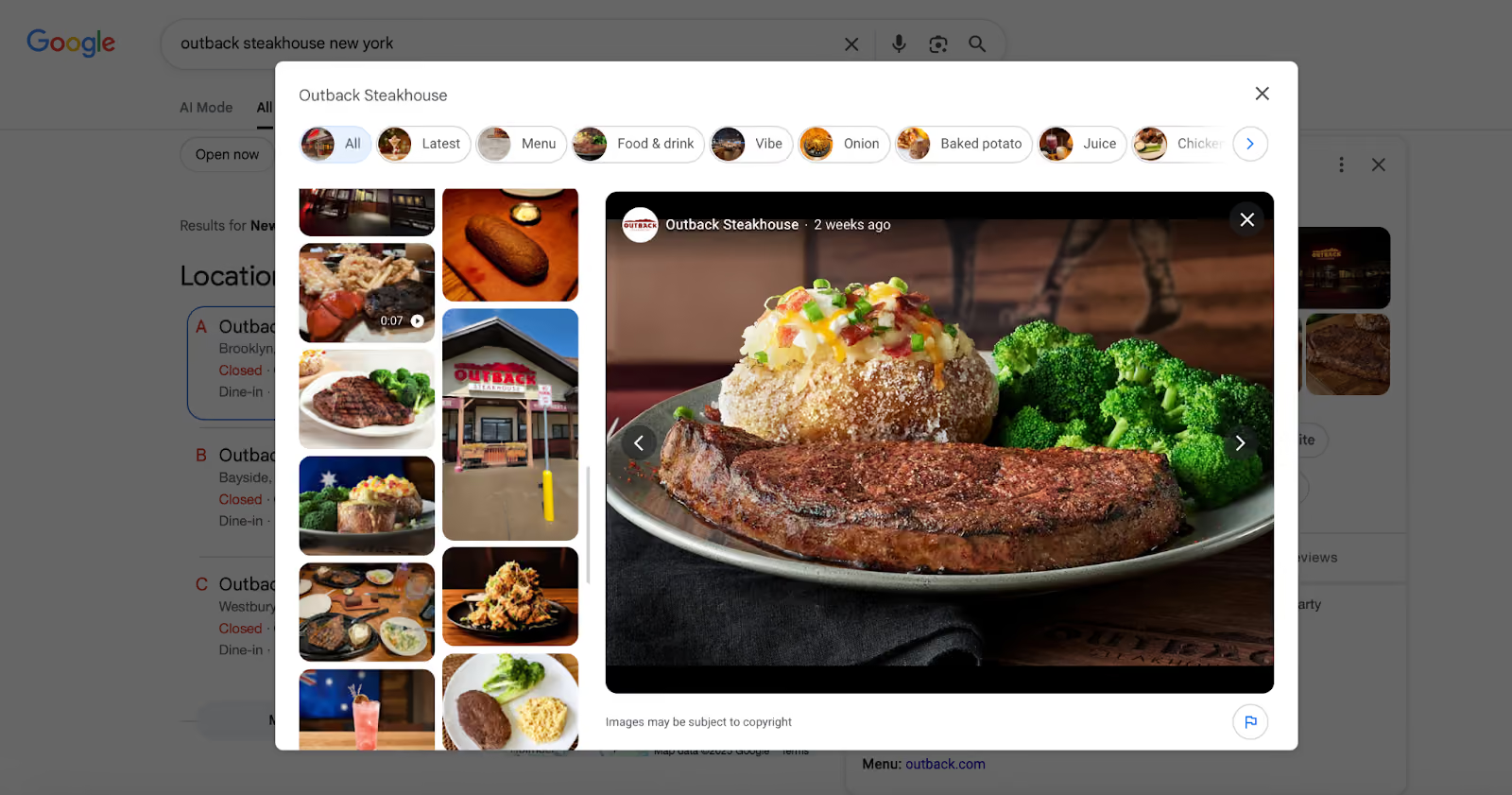
When done well, this exercise creates immediate familiarity and comfort before a customer ever visits or orders from you. Neuromarketing research consistently shows that aesthetics influence perceived quality and trust.
Pro Tip: Google prioritizes freshness across its ecosystem, and Business Profiles with recently updated content, including visuals, tend to maintain stronger visibility over time. Therefore, upload new photos and short videos every 1 to 2 months, or at a minimum once per quarter.
Regular updates also help offset customer-uploaded photos that may be outdated, low-quality, or misaligned with the experience you want to project.
5. Make your menu visible to order-ready searchers
One of the quickest ways to convert high-intent customers is by showing them what you serve before they ever visit. A clear, accurate menu reduces uncertainty, sets expectations, and helps people decide whether to order or walk in, right from Search and Maps.
Because your business is categorized as a restaurant or food service provider, Google enables a dedicated Menu editor inside your dashboard. You can use it to:
- Create menu sections, such as Appetizers, Entrées, and Drinks
- Add individual items with names, descriptions, and prices
- Update or reorganize items anytime
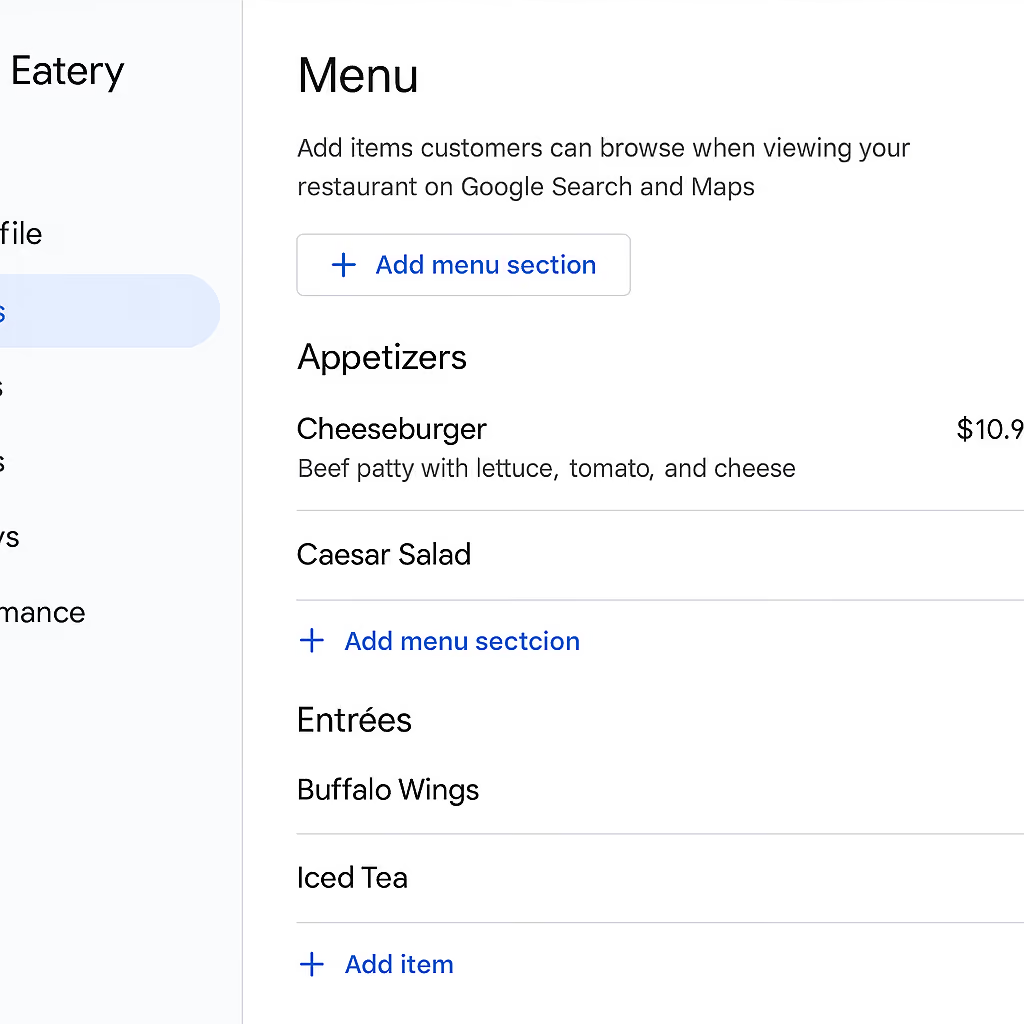
This creates a structured, searchable menu that appears in the Menu tab of your public profile.
If you already maintain a menu page on your website, you can also link that URL directly to your Business Profile. It appears as a clickable menu button and is ideal if your menu changes frequently and you want full control over branding and layout.
You can additionally upload menu photos in the Photos section of your profile. Google uses visual text recognition to identify items and may automatically categorize them when possible.
Pro Tip: If the prices on Google don’t match what customers see in-store or on your website, it will lead to complaints, poor reviews, and order disputes. Google doesn’t always reflect menu changes instantly, especially when your menu is synced through a third-party source.
Therefore, after any major update, always check your live profile through a customer’s view to confirm that the latest items and prices are visible to your customers.
Restolabs in Action: If you’re managing your menu through Restolabs, you can easily keep your online menu accurate, up to date, and consistent across all your digital touchpoints.
With real-time control over availability, pricing, timing, and add-ons, your menu always reflects what’s actually happening in your kitchen.
And beyond these essentials, Restolabs gives you granular backend controls that directly improve menu accuracy across every platform:
- Stock Counter that auto-hides sold-out items in real time
- Day/time-based scheduling for breakfast, lunch, happy hour, and weekend menus
- Bulk pricing updates for rapid menu-wide price changes
- Excel-based menu import/export for fast editing
- Item-level dietary tags (veg, vegan, gluten-free)
- Advanced modifiers and nested add-ons (critical for pizzerias and coffee shops)
6. Actively manage reviews, posts, and public questions
A Google Business Profile isn’t a static listing. It’s also a communication channel between your restaurant and customers. Which means you can create posts to share:
- New menu launches
- Events or seasonal updates
- Special offers and promotions
- Temporary changes in operations
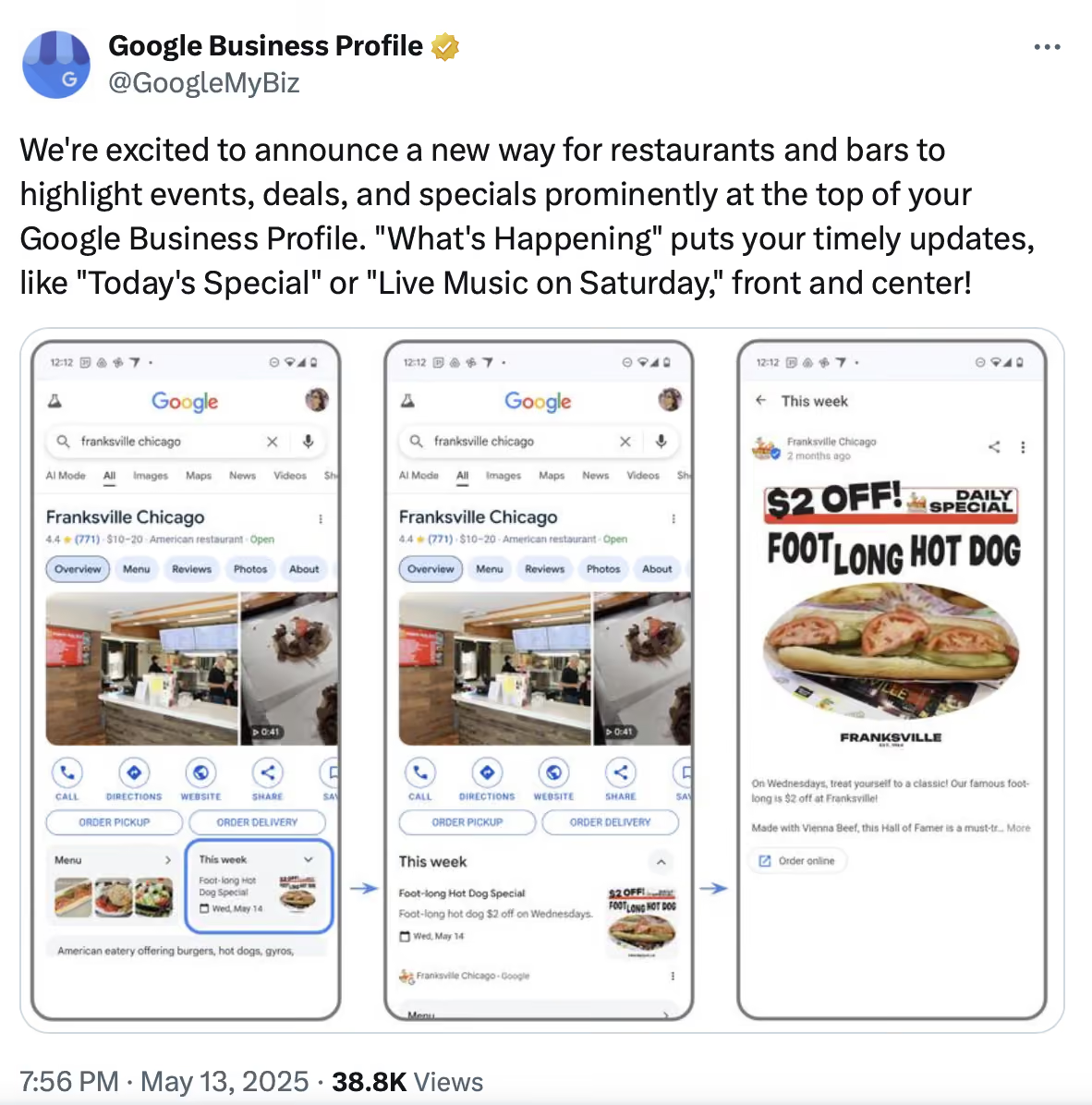
These posts appear directly on your public profile and help keep your listing fresh and relevant. Next, routinely monitor and respond to customer reviews inside your dashboard. When analyzing feedback, pay close attention to:
- Repeated complaints about the same issue, such as delays, incorrect orders, or staff behavior
- Reviews that mention food quality, hygiene, or pricing inaccuracies
- Sudden drops in rating after a specific date or event
Translate patterns into concrete operational fixes, whether that involves adjusting staffing, revising prep workflows, correcting pricing, or updating service policies based on what customers consistently flag.
Pro Tip: When you reply to a review, the customer is typically notified again, making your response part of their lasting impression of your restaurant.
- For positive reviews, acknowledge the visit, thank the customer, and mention the dish or experience they highlighted.
- For negative reviews, respond calmly, acknowledge the issue, avoid defensiveness, and clearly state what action you’re taking to fix the problem.
- If needed, invite the customer to continue the conversation offline through phone or email. Never argue publicly.
Lastly, for reviews that are clearly fake or abusive:
- Report the review directly through your Business Profile dashboard
- Select the appropriate policy violation when submitting the report
- Understand that removal isn’t guaranteed and may take time
Restolabs in Action: Many negative reviews stem from preventable operational issues: delays, incorrect items, unclear timing, or lack of delivery visibility. Restolabs helps minimize these triggers through:
- Order throttling to limit new orders during peak congestion
- Delivery tracking links when using supported dispatch partners
- Prep-time controls that adjust in real time based on kitchen load
- Item-level availability controls so out-of-stock items aren’t ordered accidentally
- Real-time notifications (SMS + email) that keep customers updated at each stage
These workflows reduce the types of errors that turn into negative profile reviews.
7. Use Business Profile Insights data as an ongoing optimization system
Once your profile is live, use the Insights data in your dashboard to connect search visibility with real business demand. Focus on these four metrics and what they mean:
Pro Tip: Set a fixed monthly review cycle for Insights. After each major profile change, compare the 14–30 day period before and after the update. If calls, menu views, or direction requests don’t increase over two consecutive review cycles, assume the input failed.
At that point, replace photos, rewrite offer posts, change category emphasis, or reposition your menu presentation until movement appears.
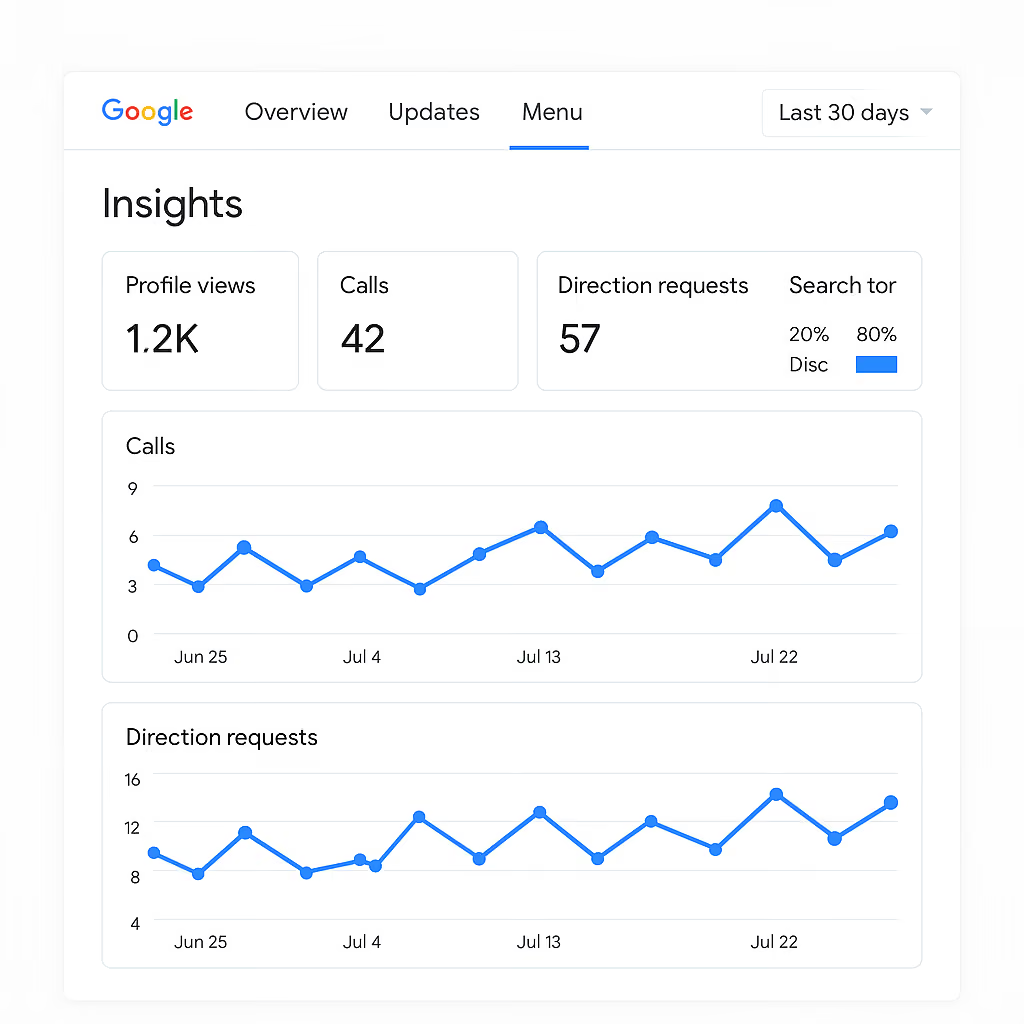
Restolabs in Action: While Google Insights shows how many people discover your business on Search and Maps, Restolabs tells you what happens after they reach your ordering site. It provides detailed, location-level analytics, including:
- Order trends by hour/day
- Top and lowest selling menu items
- Repeat vs. first-time customer behavior
- Average ticket sizes and spending patterns
- Store-by-store performance for multi-location brands
This real-time data guides you in continuously refining your menu, staffing, timing, and promotions based on actual ordering behavior.
Google Business Profile for Restaurants With Multiple Locations
A single restaurant can get away with broad strokes. A group with three, ten, or fifty locations cannot. Each Google Business Profile needs its own hours, phone number, service details, photos, and ordering path, because a diner searching at 7 p.m. is not looking for the brand in theory. They are trying to answer one question fast: which nearby location can serve them right now?
That is where many operators lose momentum. They copy the same description everywhere, point every listing to the homepage, then wonder why calls land at the wrong store or orders start with extra clicks. For a cleaner google business profile for restaurants strategy, each location should lead to its own menu or ordering page, reflect its own amenities, and use visuals that match the storefront guests will actually visit.
For teams trying to connect local discovery with direct ordering, Restolabs fits neatly into the workflow. Its commission-free ordering system helps restaurants route guests from Google to the right digital destination without handing the experience to a marketplace. Operators that want location-specific ordering pages and a simpler setup path can Book a Demo and see how Restolabs approaches it.
When Things Go Wrong With Your Google Business Profile: Common Challenges and Solutions
Beyond setup and optimization, you must also be prepared to handle failure scenarios that can instantly affect the profile’s discovery, credibility, and customer flow:
1. Your profile is locked by Google
When a profile is suspended, it’s removed from public view. Your restaurant no longer appears on Google Search or Maps. That generally happens due to:
- Policy violations
- Duplicate profiles
- Misleading business names
- Address verification issues
- Incorrect primary categories
If you find yourself in this situation, review Google’s suspension notice carefully. Correct the specific violation, gather any required supporting documents, and submit an appeal through the official reinstatement form.
Reinstatement isn’t instant and may take several days or weeks. During this period, don’t create new duplicate profiles, as doing so can delay recovery and result in longer-term restrictions.
2. Your listing drops out of local results
If your restaurant stops appearing on Search or Maps, it’s most likely because of incomplete verification or conflicts with existing listings at the same address.
First, confirm that your Business Profile is fully verified. If it isn’t verified, your visibility will be limited, and your listing may not appear in local results.
And if your profile was created or edited recently, short-term ranking fluctuations are also normal. New listings can take several days to stabilize as Google processes trust and location signals.
3. Your traffic is split across multiple profiles
Old listings often remain visible after a location change, ownership transfer, or rebranding, which can confuse customers, redirect calls, and split reviews and ratings across different profiles. So if you find an old or duplicate listing for your restaurant:
- Claim it if possible
- Mark it as permanently closed
- Or request removal through Google’s suggested edit tools
Always ensure only one active Business Profile exists for your restaurant at a single physical address.
Make Google Traffic Work for Your Bottom Line
Your Google Business Profile is often the final decision point before a customer acts or moves on. If the path from discovery to ordering is slow, confusing, or routed through third-party platforms, revenue is lost when intent is highest.
The steps in this blog are designed to help you tighten that entire discovery-to-order flow.
When customers find your restaurant on Google, they increasingly expect to place an order immediately. By linking your Google Business Profile directly to your Restolabs ordering site, you create a clean, uninterrupted path from Search to Order within your own ecosystem.
Restolabs provides a fully branded, commission-free ordering infrastructure explicitly built to capture and convert Google traffic.
Linking your Google Business Profile directly to your Restolabs ordering site creates a clean, controlled flow from “Search → Menu → Checkout” fully within your ecosystem. You gain:
- Multi-location routing and centralized management
- Branded ordering interfaces (web + optional iOS/Android apps)
- Actionable analytics that tie Google traffic to actual order volume
- Support for pickup, delivery, curbside, and dine-in from one backend
- Optimized prep times, availability controls, and surge-hour throttling
- Delivery workflows for in-house drivers and third-party dispatch partners
Instead of paying commissions on every order, you retain full margin and full control over customer data, loyalty, and promotions. If your goal is to turn Google visibility into predictable, profitable direct orders, Restolabs gives you the infrastructure to do exactly that.
Book a demo with Restolabs today.

Asavari drives content development at Restolabs. With over a decade of experience partnering with fast paced technology and marketing teams, she turns complex product and industry details into clear, meaningful communication for restaurant partners.
Frequently Asked Questions
Yes. Creating and managing a Google Business Profile is entirely free. Google doesn’t charge for setup, listing, or visibility on Search and Maps. You incur costs only if you choose to use optional third-party services, such as online ordering platforms, reservation systems, or profile management agencies.
Yes. Customers can add images and videos to your profile without your consent. This content may appear alongside your own visuals. You can report anything that is inappropriate or misleading, but customer contributions can’t be fully disabled.
Yes. You can remove or deactivate your “Order Online” links at any time without impacting your core Search or Maps visibility. This is useful during kitchen disruptions, staffing shortages, temporary closures, or delivery service pauses.

.jpg)
.jpg)
.jpg)
.jpg)




.webp)

.svg)
.webp)